 3 min
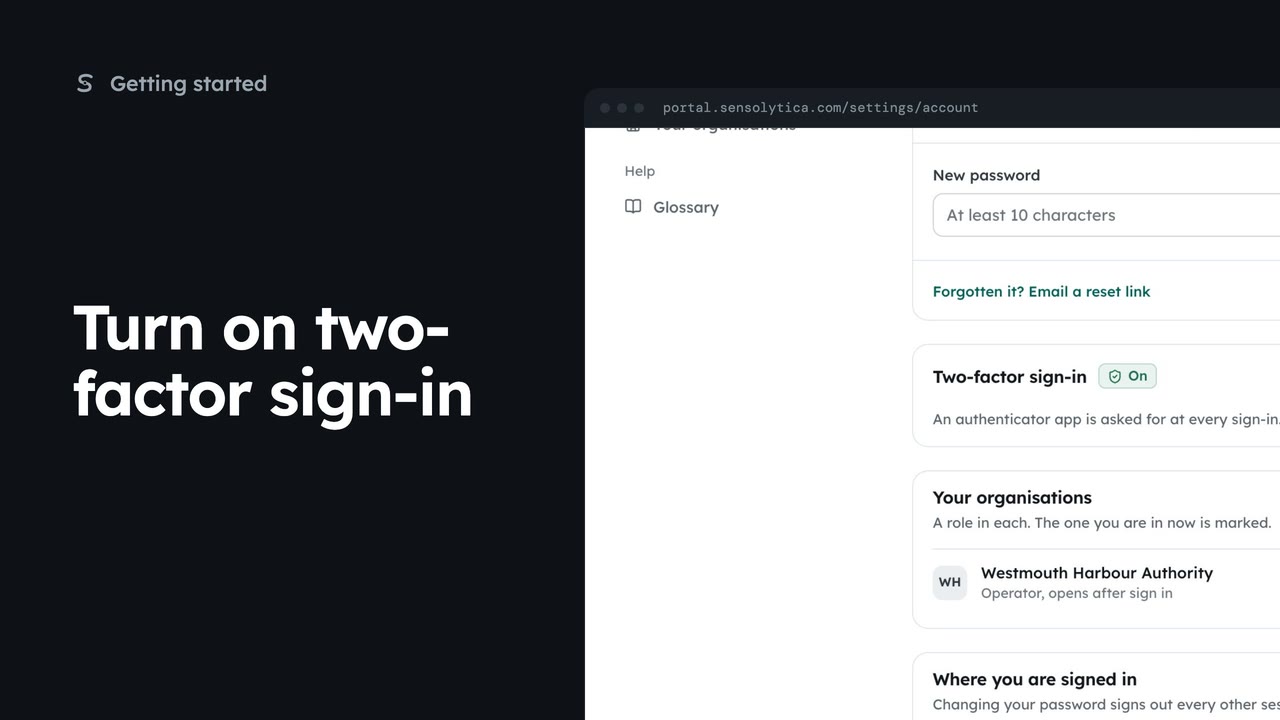
3 minTurn on two-factor sign-in
Pair an authenticator app with your account so a stolen password is not enough to sign in as you, then sign in with a code.
3 min5 stepsSensolytica staff, Admin, Operator, Maker
Remove your authenticator app when you change phones, then pair the new one straight away.
Two-factor sign-in is on
Your account shows it as On, with Turn off beside it.
Turn off
Sign in goes back to your password alone until you pair a new app.
Turn on two-factor
The warning leads the page again. Turn on two-factor pairs the new app.
Changing phones? Open Your account from your name at the top right. Two-factor sign-in shows On, with Turn off beside it.
Choose Turn off and confirm. Sign in goes back to your password alone, so pair the new phone straight away.
The warning leads the page again. Choose Turn on two-factor and scan the new code with the app on your new phone, as when you first turned it on.
Sign in with your work email. Your own organisation's records, nodes and units take the place of the Westmouth ones.
3 minPair an authenticator app with your account so a stolen password is not enough to sign in as you, then sign in with a code.
3 min5 stepsSensolytica staff, Admin, Operator, Maker
 2 min
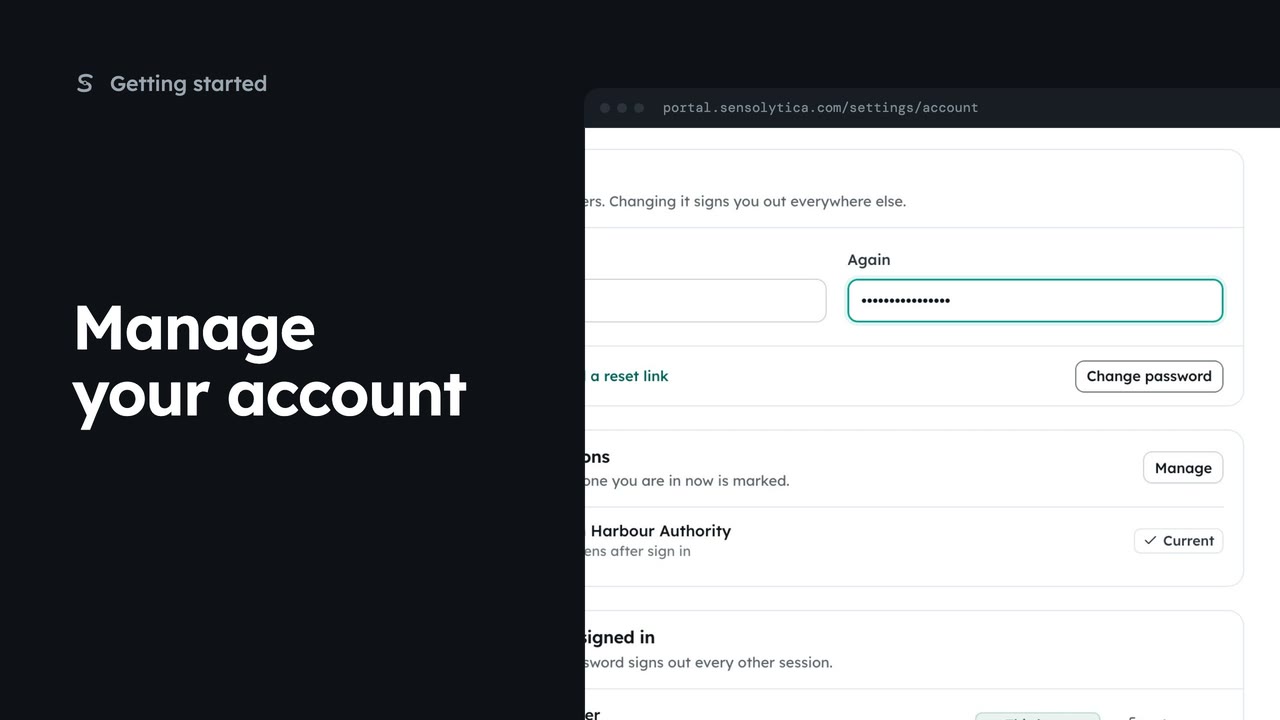
2 minSet your name and picture, change your password and see where you are signed in.
2 min4 stepsSensolytica staff, Admin, Operator, Maker
 3 min
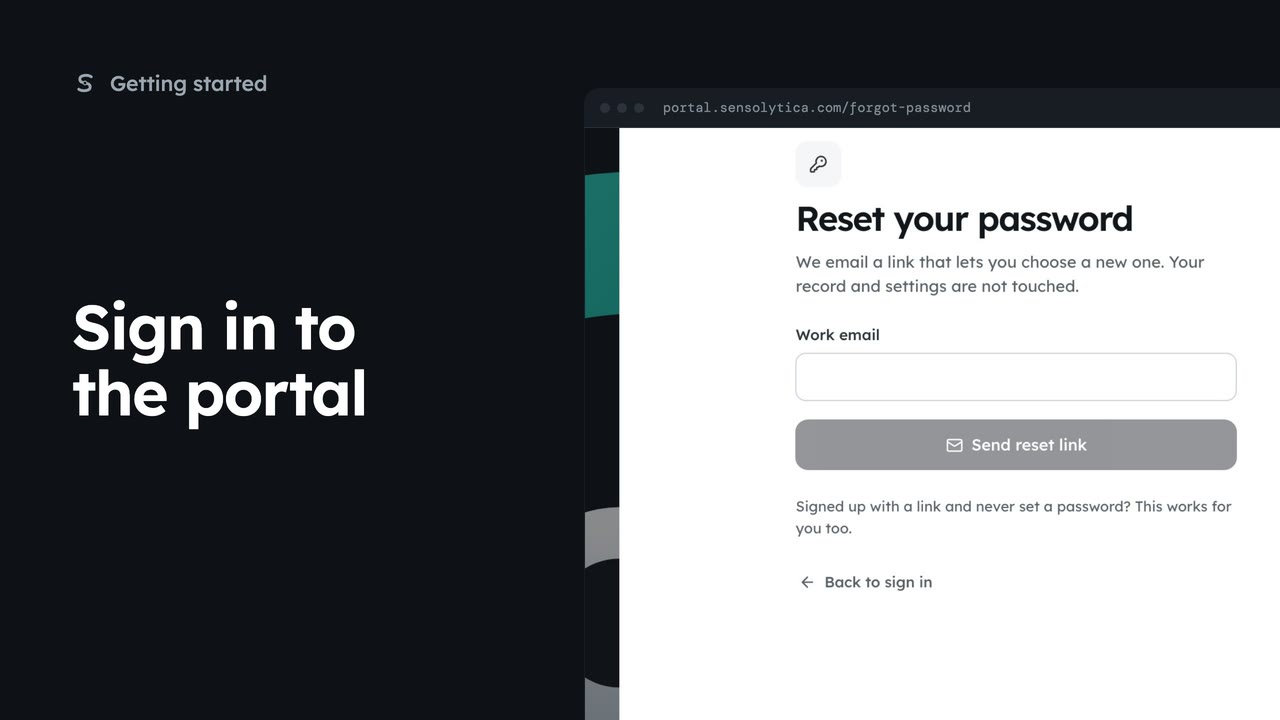
3 minSign in with your work email and a password or an emailed link, enter your two-factor code, and get back in if you forget your password.
3 min7 stepsSensolytica staff, Admin, Operator, Maker
Checked against the portal on 15 October 2026. Westmouth names, vessels, units and figures are illustrative. General guidance on using the portal, not legal, regulatory or financial advice.