 3 min
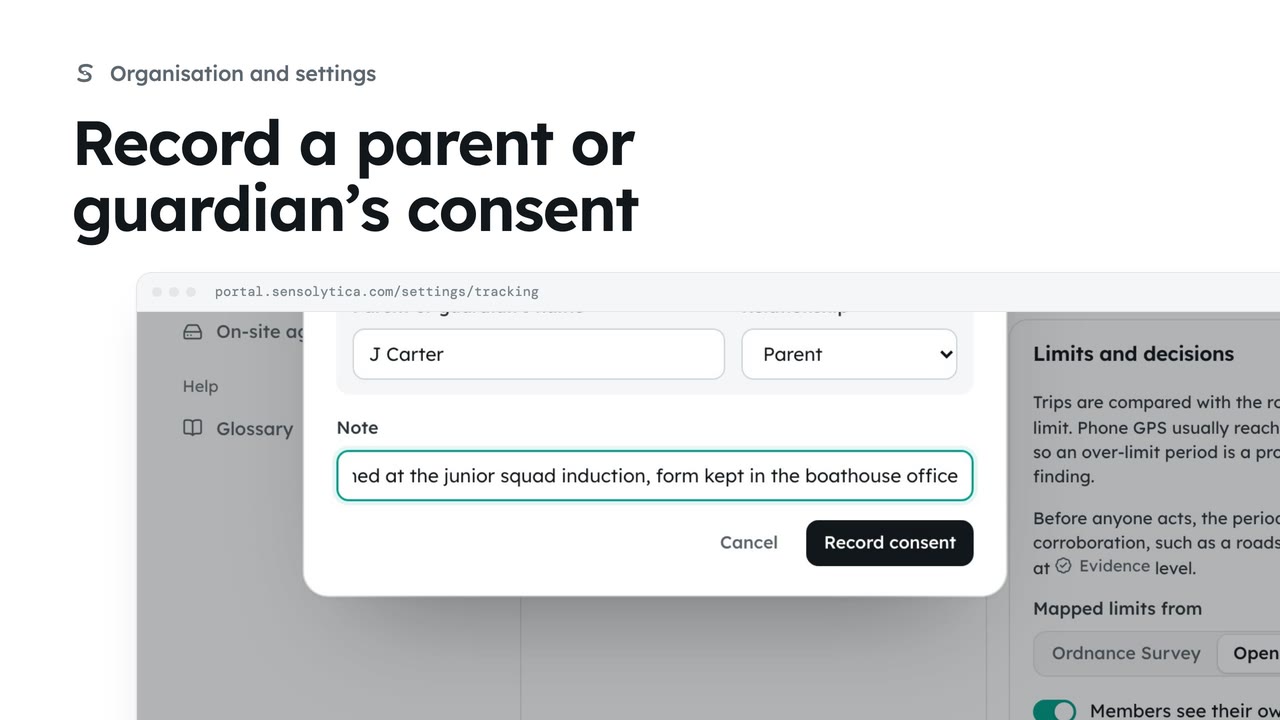
3 minRecord a parent or guardian’s consent
Require a parent or guardian’s consent for under 18s, and record one that was given on paper.
3 min6 stepsAdmin
Decide who may track the organisation’s own vehicles and boats, with whose consent, when, and how long trips are kept.
Rules for members’ phones
Settings, Tracking rules. Only the organisation’s own vehicles and boats can be tracked.
Roles and named boats
Turn roles on or off under Roles that may track. Each boat in the table can be narrowed to named people.
Consent comes first
Each driver or skipper agrees in the app. A withdrawn consent shows the date and reason.
Working hours only
Change the From and To times and the working days under When tracking runs.
Keep trips for a set time
Under What is kept, enter the number of days trips are kept, in step with your impact assessment.
Save and confirm
Choose Save rules, then Save rules in the confirm window.
Open Settings and choose Tracking rules. These rules decide how members’ phones may track the organisation’s own cars, vans and boats. Phones check them before every trip.
Under Who may track, choose the roles allowed to track. The table lists each tracked vehicle or boat, here the harbour launch. Add another with Add a vehicle or boat, or stop one with Stop.
Nobody’s trips are recorded until they agree in the app, and they can withdraw at any time. Here a skipper withdrew when he moved off patrol duty, so his trips stopped at once. Use Withdraw to stop someone’s consent on their behalf.
Under When tracking runs, set the working hours and days. Tracking never runs outside them, whatever the phone does. Change the start to seven in the morning.
Under What is kept, set how many days trips are kept before they are deleted. Consents and withdrawals are kept with the audit trail.
Choose Save rules and confirm. A trip already running keeps the rules it started with; the next one uses the new rules.
Sign in with your work email. Your own organisation's records, nodes and units take the place of the Westmouth ones.
3 minRequire a parent or guardian’s consent for under 18s, and record one that was given on paper.
3 min6 stepsAdmin
 1 min
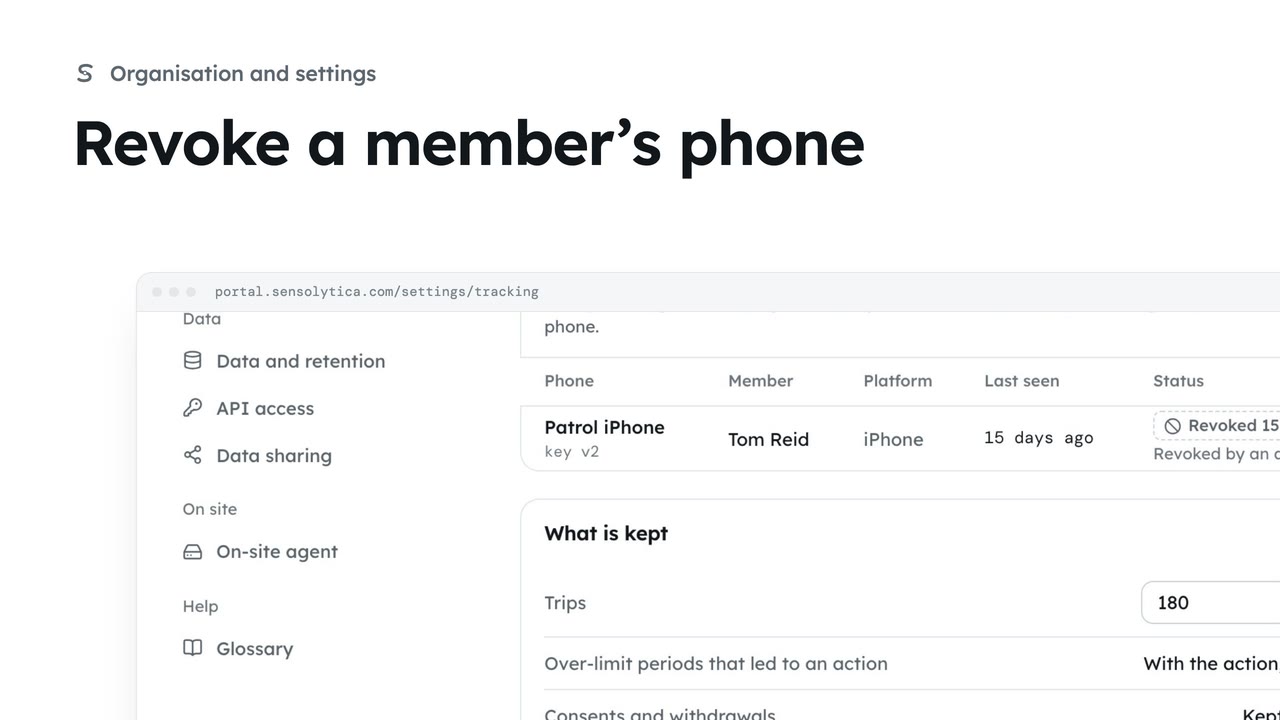
1 minSee which phones may send readings and revoke one that is lost, replaced or no longer needed.
1 min3 stepsAdmin
 2 min
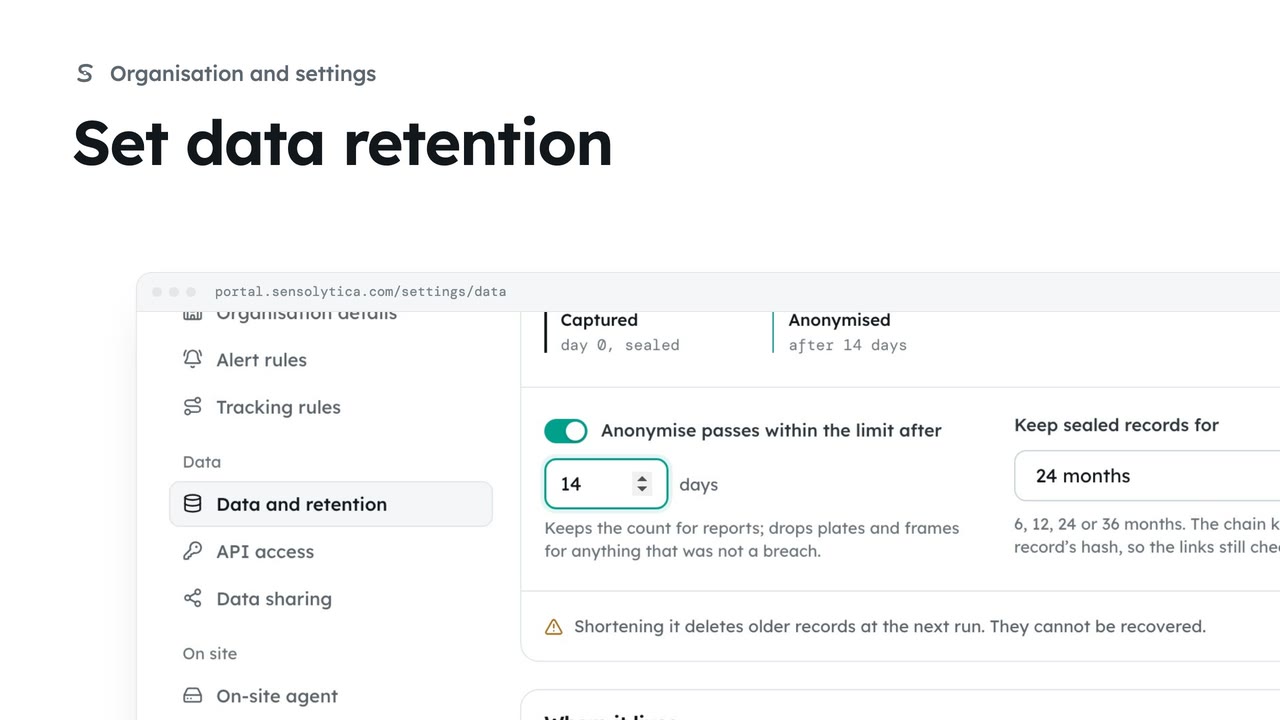
2 minChoose how long sealed records are kept and when passes within the limit lose what identifies them.
2 min4 stepsAdmin
Checked against the portal on 15 October 2026. Westmouth names, vessels, units and figures are illustrative. General guidance on using the portal, not legal, regulatory or financial advice.