 2 min
2 minDrive unit health
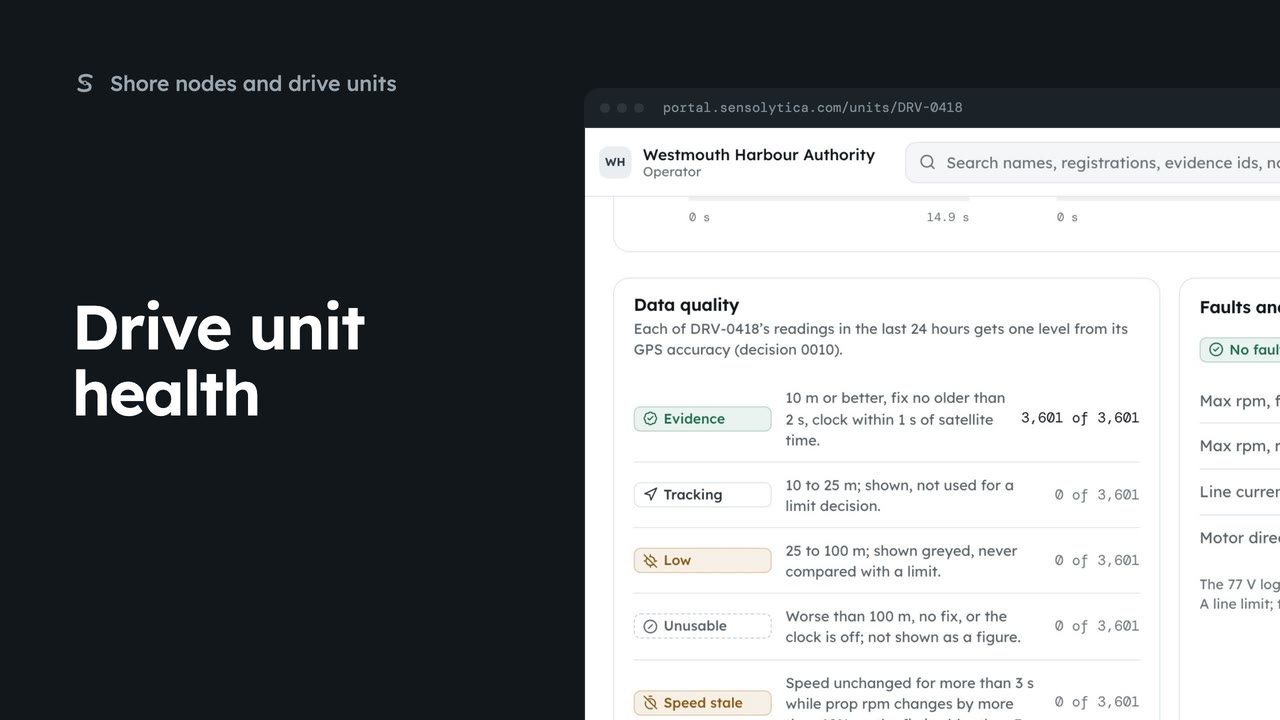
Read what a drive unit reports now, how good its readings are, and its faults and limits.
2 min6 stepsAdmin, Operator
Bring in a CSV from an electric outboard's own app, check every reading against the quality levels and seal it on import.
Import readings
On the record, admins select Import readings. Import history lists every file brought in.
Upload a CSV file
Drop the file or choose it, up to 5 MB. The 77 V and 51 V controller exports are recognised.
Columns, then the time zone
Check each column's field. Choose the time zone when the file has none.
Where it belongs
Choose the vessel; the drive is filled in from the file. Tick the box if the vessel did not move.
Every reading checked
Readings by quality level, flags for stale readings and gaps, and any rejected rows.
Sealed on import
Select Import, then Import in the dialog. The file and its hash are kept as provenance.
Open The record from the sidebar and select Import readings. The page walks through six steps, and Import history, at the top, lists every file brought in before, who imported it and which vessel it went to.
Drop the CSV onto the page, or choose it. Sensolytica reads it at once, shows its fingerprint and checks it has not been imported before. This one is recognised as a 51 V controller export; any other file can be mapped column by column.
The columns are read with the saved 51 V controller export format. Change any field if it is wrong; an ignored column is still kept with the original file. Then check the time zone. Readings are stored in UTC with the offset.
Choose the vessel the readings belong to. The drive is filled in from the file. This log was a run in place at the berth, so tick the box that says the vessel did not move; it is then never shown as movement.
The preview checks every reading against the quality levels before anything is imported: Evidence, Tracking, Low and Unusable. This log's positions were about a hundred metres out, so every reading is Unusable. They are kept on the vessel's record but never compared with a limit.
Select Import, then confirm. The readings are sealed on import, marked imported, not sealed at source, and the original file is kept with its hash. You land on the import's own page, where an admin can withdraw it later with a reason.
Sign in with your work email. Your own organisation's records, nodes and units take the place of the Westmouth ones.
2 minRead what a drive unit reports now, how good its readings are, and its faults and limits.
2 min6 stepsAdmin, Operator
 2 min
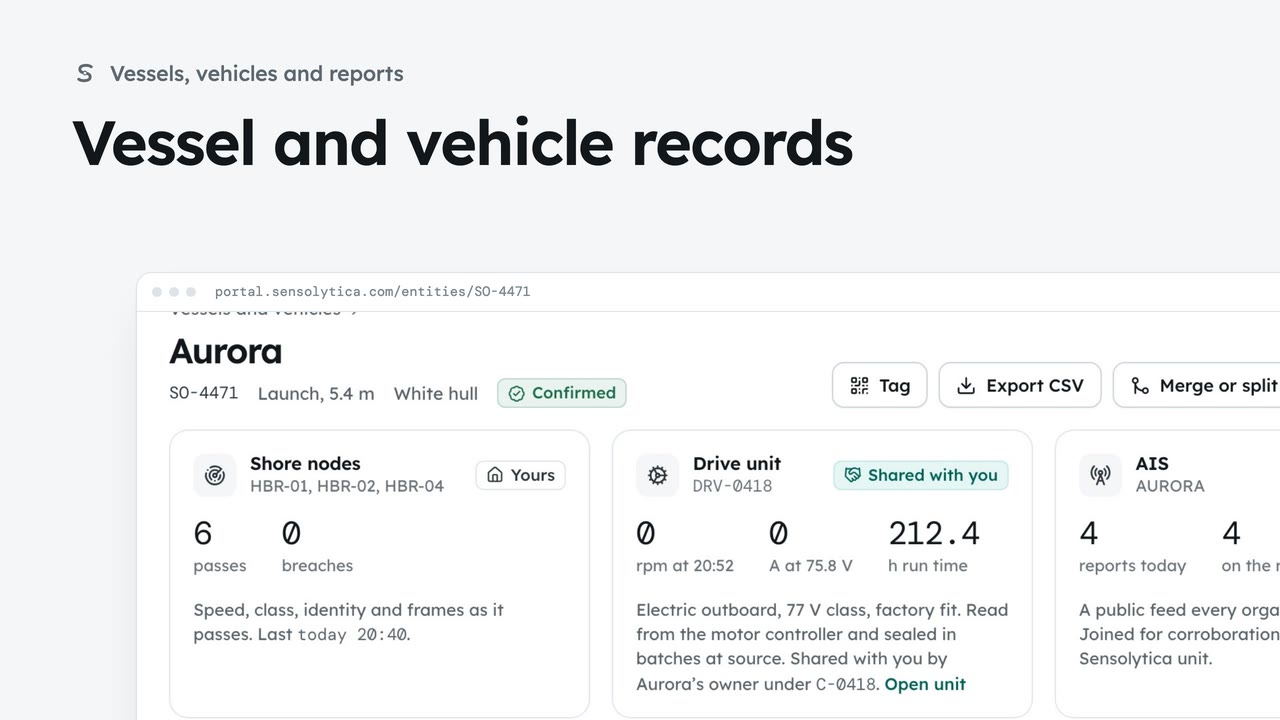
2 minFind a vessel or vehicle and read its one record, joining every shore node pass, its drive unit and AIS.
2 min6 stepsAdmin, Operator
 2 min
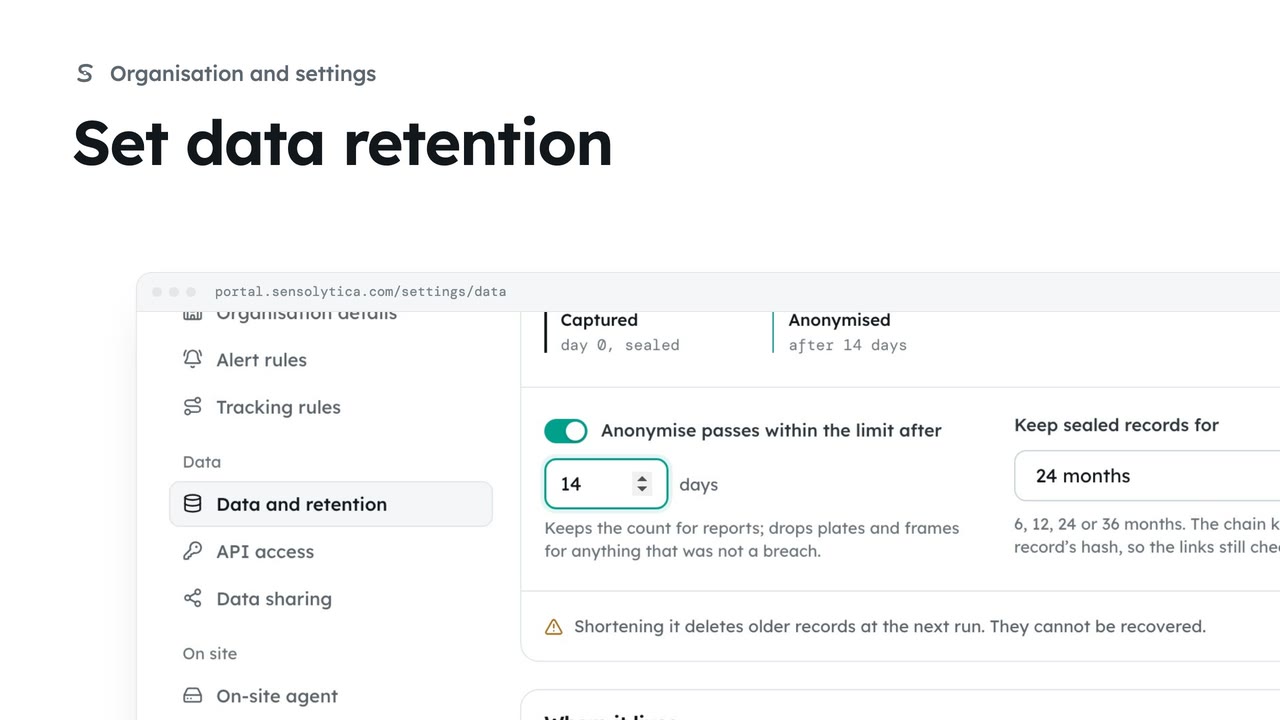
2 minChoose how long sealed records are kept and when passes within the limit lose what identifies them.
2 min4 stepsAdmin
Checked against the portal on 15 October 2026. Westmouth names, vessels, units and figures are illustrative. General guidance on using the portal, not legal, regulatory or financial advice.