 2 min
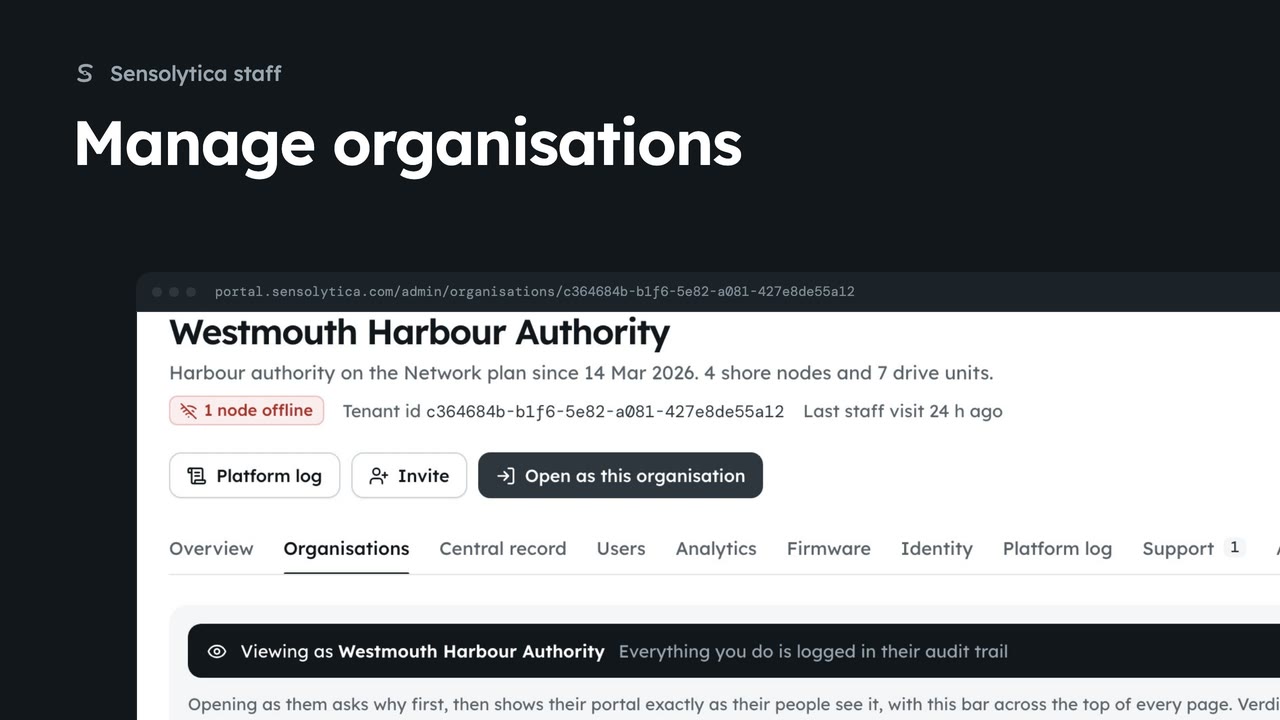
2 minManage organisations
Find an organisation, check its health and fleet on its platform page, and create a new one.
2 min6 stepsSensolytica staff
Act inside an organisation as Sensolytica staff with a recorded reason, then leave it again.
The organisation chip
On platform pages the chip in the top bar says All organisations. Click it, or press O.
Find and choose
Type into Find an organisation, then choose it. You are not a member, so the enter dialog opens.
A reason on record
Choose a reason, add a reference such as SL-1051 and a note. The reference finds the support request.
Access and the audit line
Read only changes nothing. Able to act signs changes as Sensolytica staff. The preview is the line their trail will show.
Enter read only
Enter read only opens their dashboard. The bar across the top says Read only, where you are and why.
Leave when you are done
Leave on the staff bar closes the visit and takes you back to the platform overview.
Open as this organisation
On an organisation's platform page, Open as this organisation opens the same dialog. Cancel if you only wanted to look.
On platform pages the chip in the top bar reads All organisations. Click it, or press O, to see every organisation on the platform, with a search box at the top.
Type part of the name and choose the organisation. You are not a member, so instead of going straight in, the enter dialog opens. If you are already visiting another organisation, it says that visit ends first.
Choose a reason, here Support request, and type the reference SL-1051. The dialog finds the request and shows its subject. Add a short note for their admins if it helps them see what you are checking.
Under Access, Read only lets you look at anything and change nothing, which suits most support requests. Able to act signs any change as Sensolytica staff. Below, the preview shows the exact line their audit trail will get.
Click Enter read only. You land on their dashboard and see the portal as their people do. The bar across the top says Read only: you are viewing it as Sensolytica staff, with your reason and the time you went in. Anything that would change their data is refused, with the reason.
When you have finished, click Leave on the bar. The visit is closed in their audit trail with the time you left, and you are back on the platform overview.
You can also go in from an organisation's own platform page. Open the Organisations tab and choose the council. Open as this organisation opens the same dialog, with the same reasons and access. Cancel if you only wanted to look.
Sign in with your work email. Your own organisation's records, nodes and units take the place of the Westmouth ones.
2 minFind an organisation, check its health and fleet on its platform page, and create a new one.
2 min6 stepsSensolytica staff
 2 min
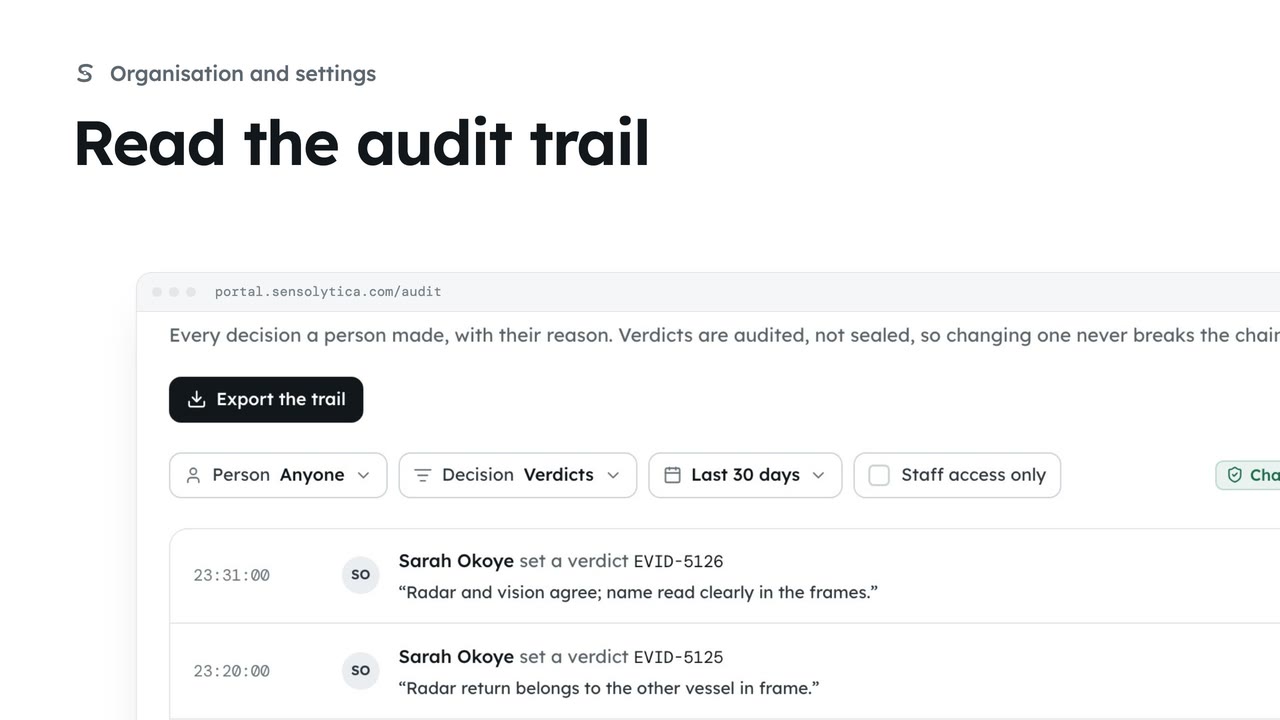
2 minSee every decision a person made in your organisation, with their reason, and export it for an auditor.
2 min4 stepsAdmin
 2 min
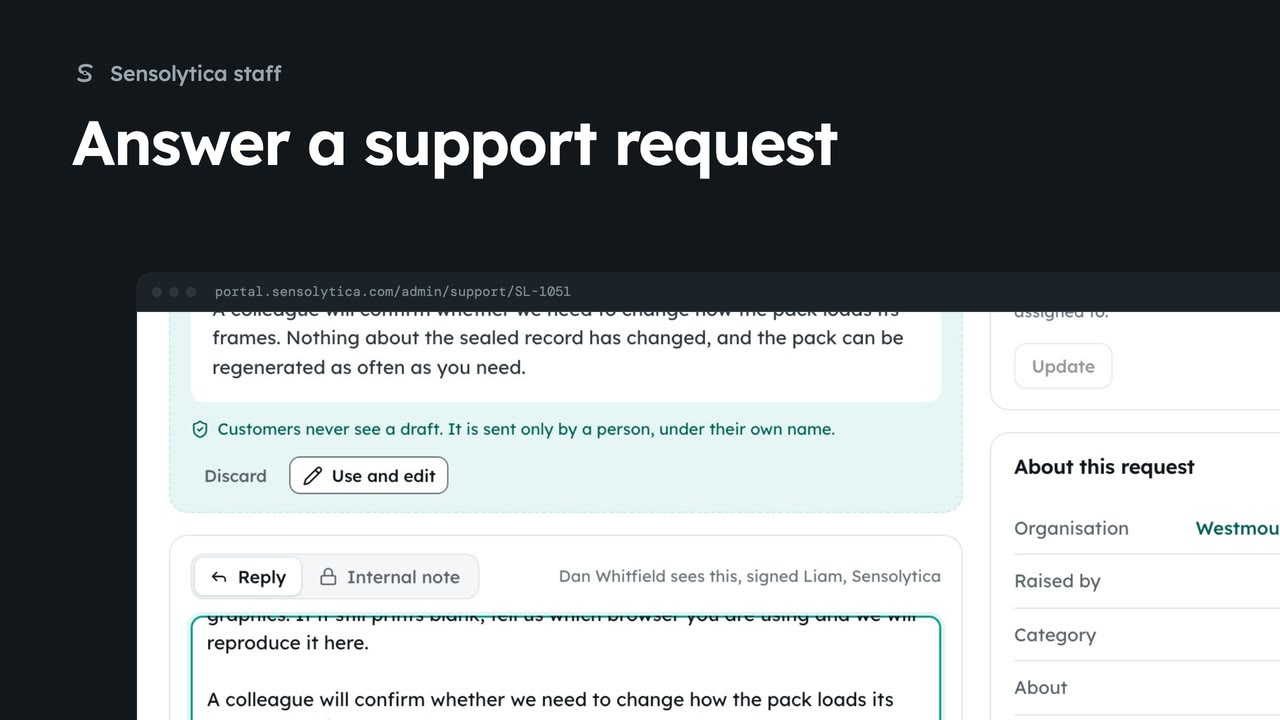
2 minTake a request from the support queue, use the agent's suggested reply, and send it under your own name.
2 min6 stepsSensolytica staff
Checked against the portal on 15 October 2026. Westmouth names, vessels, units and figures are illustrative. General guidance on using the portal, not legal, regulatory or financial advice.