 2 min
2 minEnter an organisation as staff
Act inside an organisation as Sensolytica staff with a recorded reason, then leave it again.
2 min7 stepsSensolytica staff
Enter an organisation able to act, see what it looks like inside, change a setting for them, and find your visit in their audit trail.
All organisations
Every tenant side by side, most in need first. Filter by kind, health or plan.
Reason, then Able to act
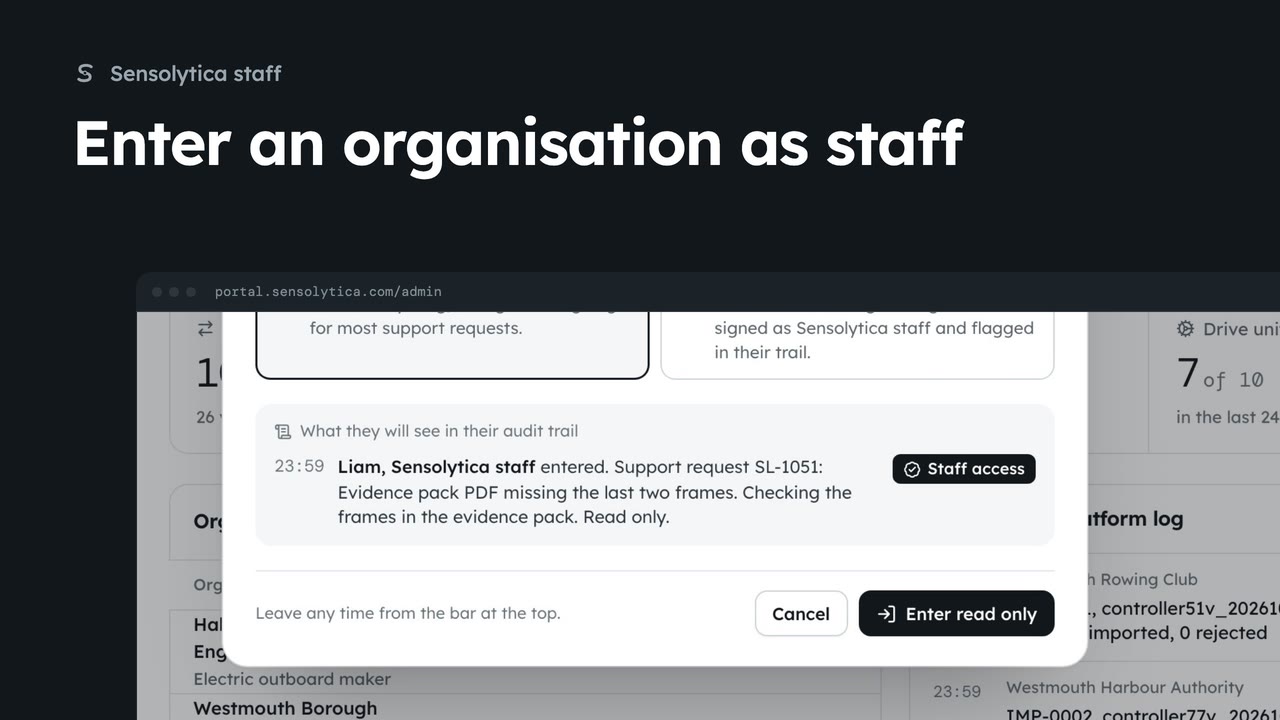
Able to act signs your changes as Sensolytica staff and flags them in their trail.
The staff bar
Their portal, as they see it, with a bar that says you are acting as staff, and why.
Organisation details
Settings work as for their admin. The change is signed as staff.
In their trail
They can read your visit, reason and changes. Leave ends the visit.
From Organisations, open All organisations, by health. Every tenant is side by side, the ones that need attention first. Filter by kind, health or plan. Each row has Detail and Enter.
Choose Enter on Westmouth Rowing Club. Give a reason, here Set-up, and a note for them. Read only is right for most support. Able to act lets you change settings, and every change is signed as Sensolytica staff.
Choose Enter able to act. You see their portal as they do, with a bar across the top that says you are acting there as Sensolytica staff, why, and since when.
Open Settings, then Organisation details, and add the club phone number. Save details and confirm. The change is signed as Sensolytica staff in their trail.
Their audit trail shows your visit and the change, under your name, for their admins to read. When you are done, choose Leave on the bar. The visit closes in their trail and you are back on the platform.
Sign in with your work email. Your own organisation's records, nodes and units take the place of the Westmouth ones.
2 minAct inside an organisation as Sensolytica staff with a recorded reason, then leave it again.
2 min7 stepsSensolytica staff
 1 min
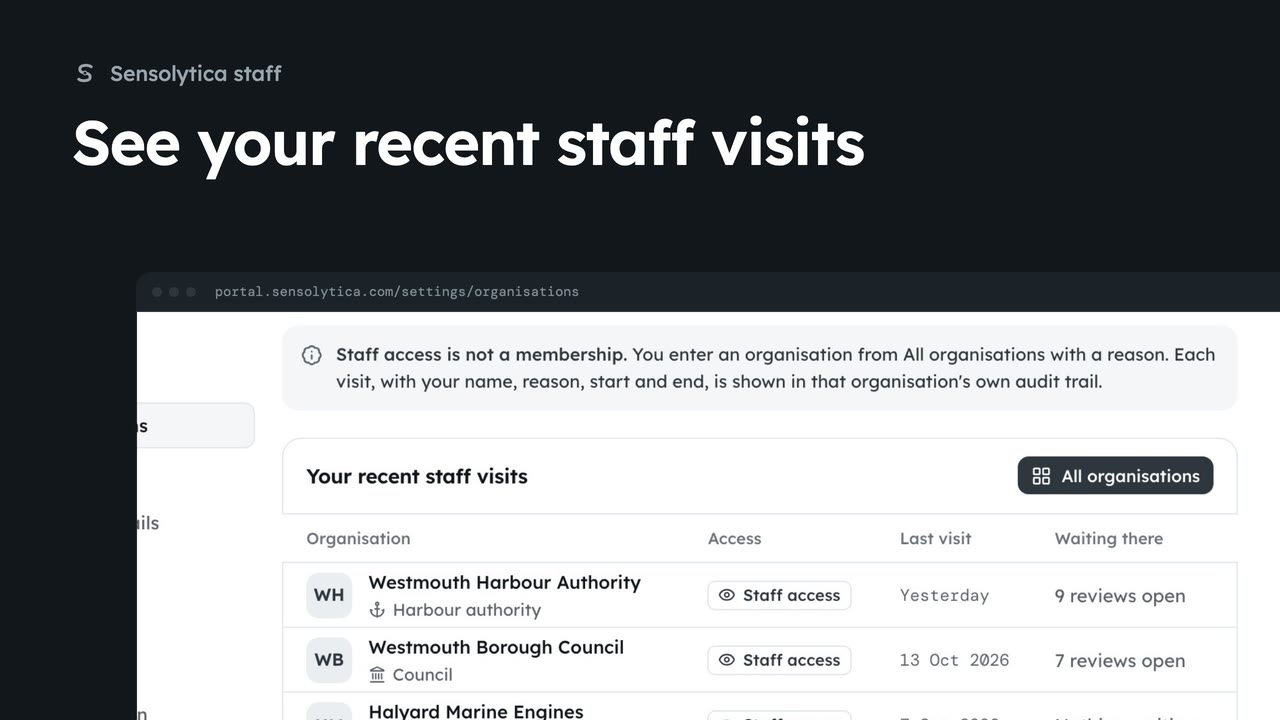
1 minList the organisations you have entered as staff, when, and what is waiting there.
1 min2 stepsSensolytica staff
 2 min
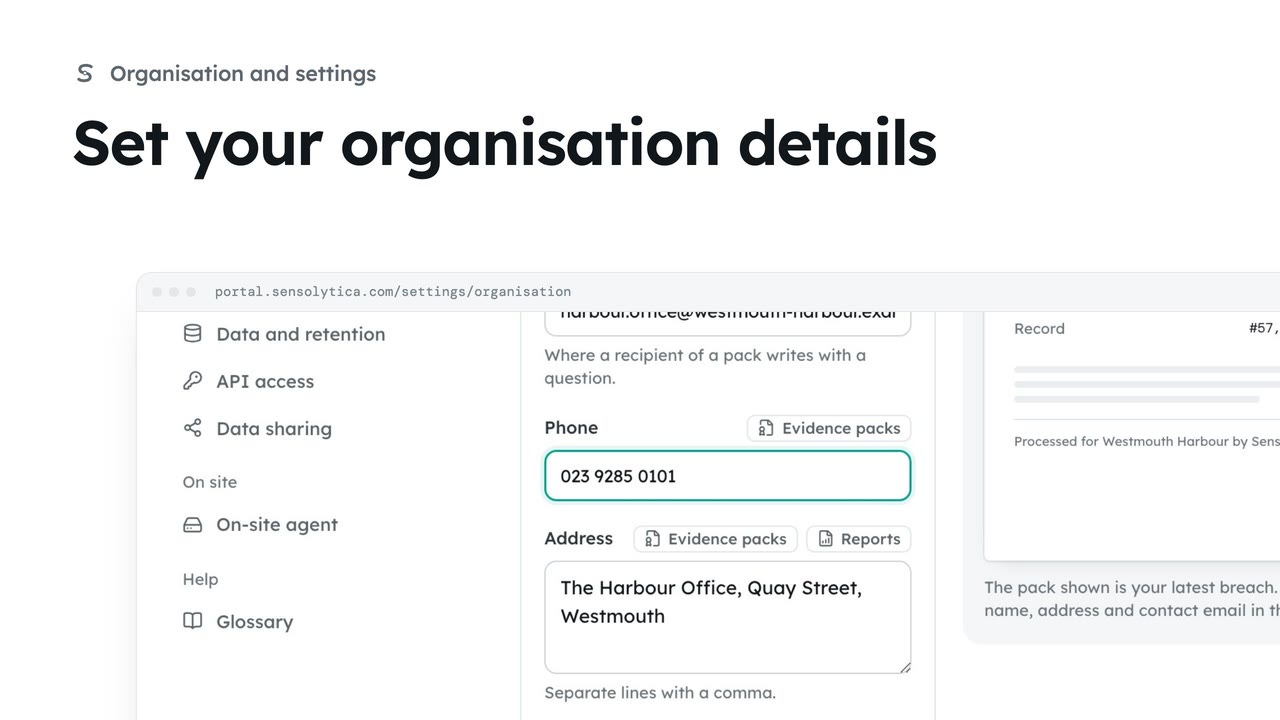
2 minKeep the name, contact email, phone and address that head every evidence pack and report up to date.
2 min4 stepsAdmin
Checked against the portal on 15 October 2026. Westmouth names, vessels, units and figures are illustrative. General guidance on using the portal, not legal, regulatory or financial advice.