 2 min
2 minAccept an invitation to an organisation
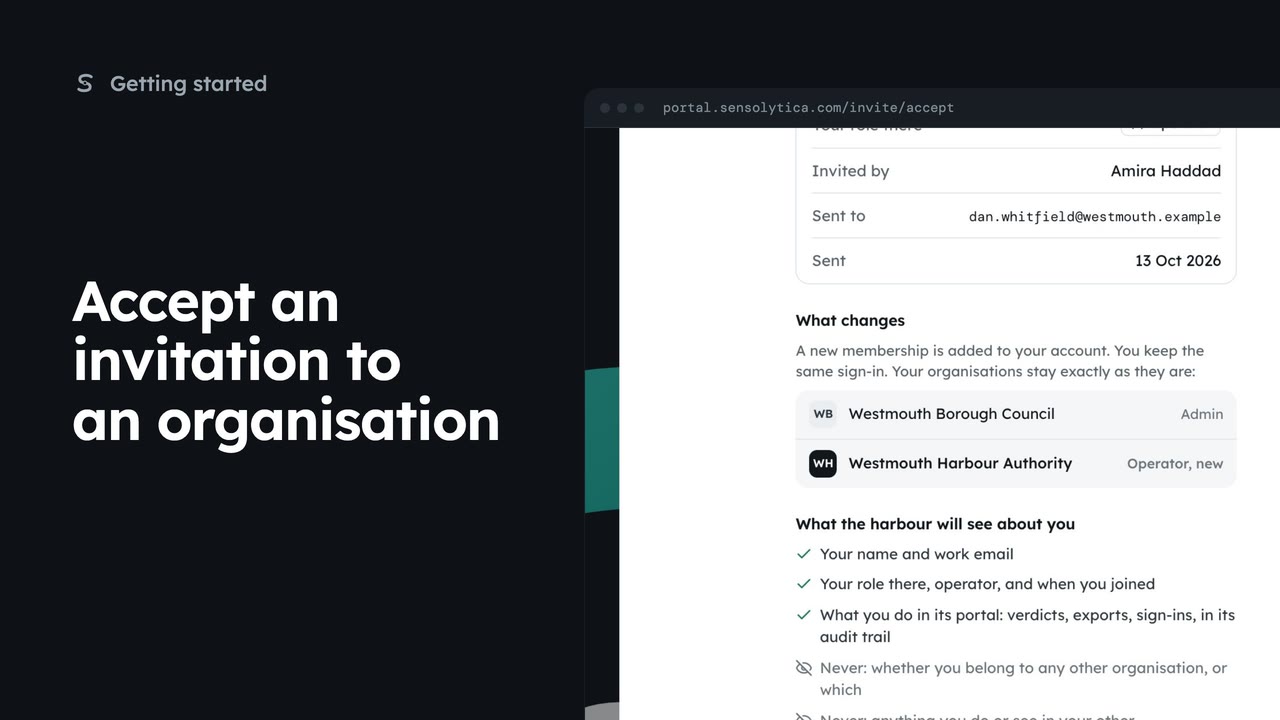
Review an invitation to another organisation, see what it will know about you, and accept or decline it.
2 min5 stepsAdmin, Operator, Maker
Pick where to start after sign in, switch organisation from the top bar, and set your default.
Where to start?
If you belong to several organisations, you pick one after sign in.
Pick and open
Choose a card, keep Remember this choice ticked, then Open.
The organisation chip
The chip at the top left shows where you are and your role.
Pick another organisation
A list page stays put in the new organisation. Filters reset.
Your organisations
Manage opens the full list. Make default sets which opens first.
If you belong to more than one organisation, the portal asks where to start. Each card shows your role there and what is waiting, such as reviews open or nodes offline.
Choose Westmouth Harbour Authority. Keep Remember this choice ticked and next time you go straight in. Then choose Open Westmouth Harbour Authority.
The chip at the top left of every page shows the organisation you are in and your role there. Choose it, or press O on the keyboard, to switch.
Choose Westmouth Borough Council. A short note confirms where you are and your role. On a list page you stay on the same page, now showing the council's data.
To change which organisation opens first, open the switcher and choose Manage. Your organisations lists each membership, and Make default sets the one you start in.
Sign in with your work email. Your own organisation's records, nodes and units take the place of the Westmouth ones.
2 minReview an invitation to another organisation, see what it will know about you, and accept or decline it.
2 min5 stepsAdmin, Operator, Maker
 2 min
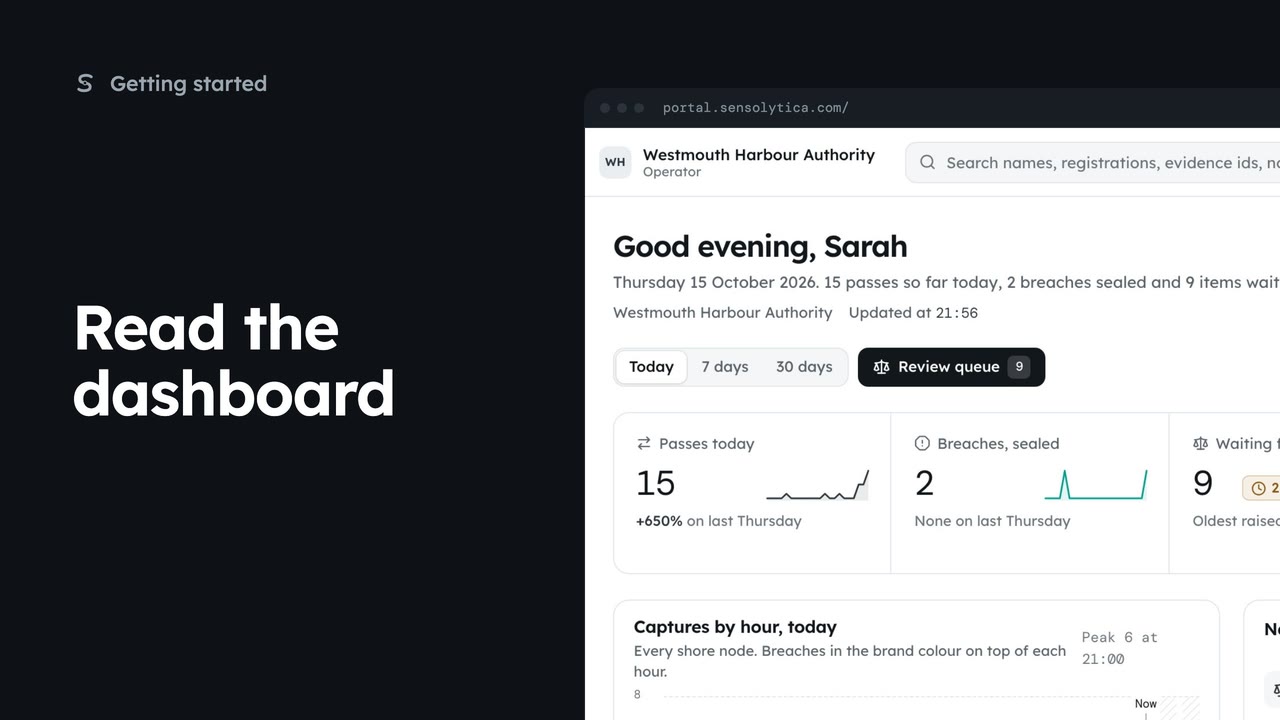
2 minSee what happened today, what needs a person and whether every unit is working, in a few seconds.
2 min5 stepsAdmin, Operator, Sensolytica staff
 2 min
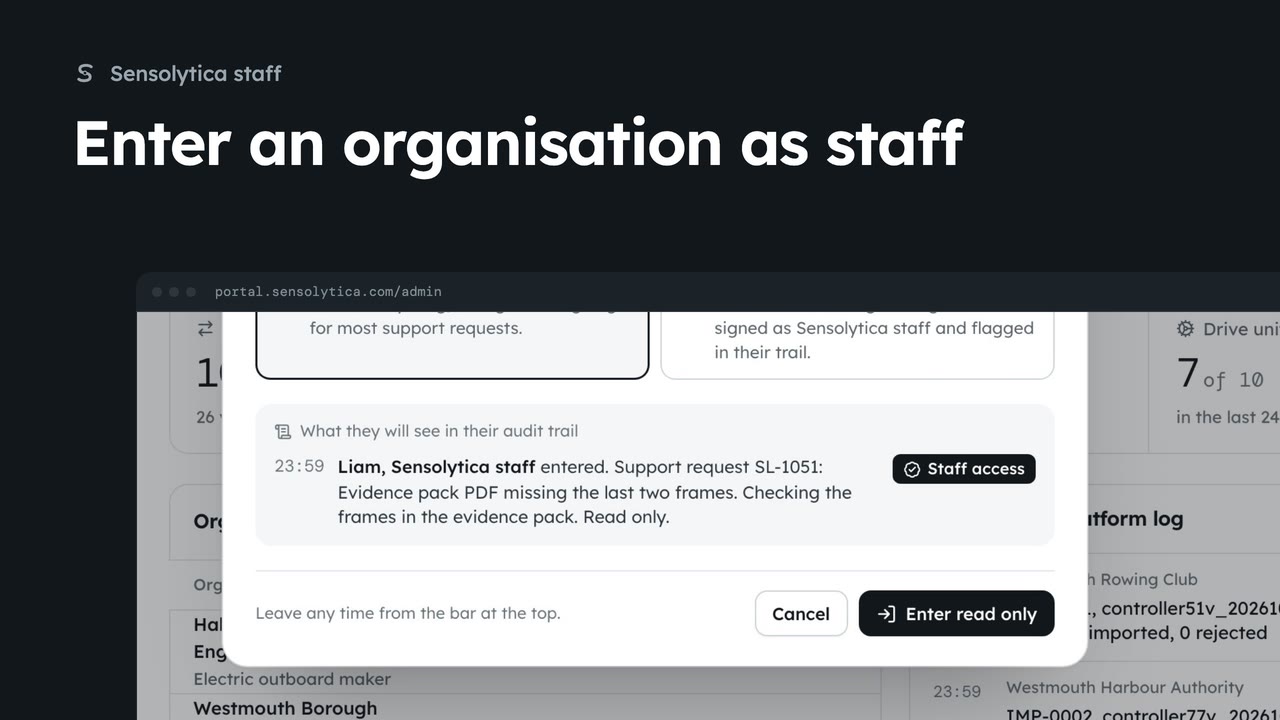
2 minAct inside an organisation as Sensolytica staff with a recorded reason, then leave it again.
2 min7 stepsSensolytica staff
Checked against the portal on 15 October 2026. Westmouth names, vessels, units and figures are illustrative. General guidance on using the portal, not legal, regulatory or financial advice.