 3 min
3 minA capture and its objects
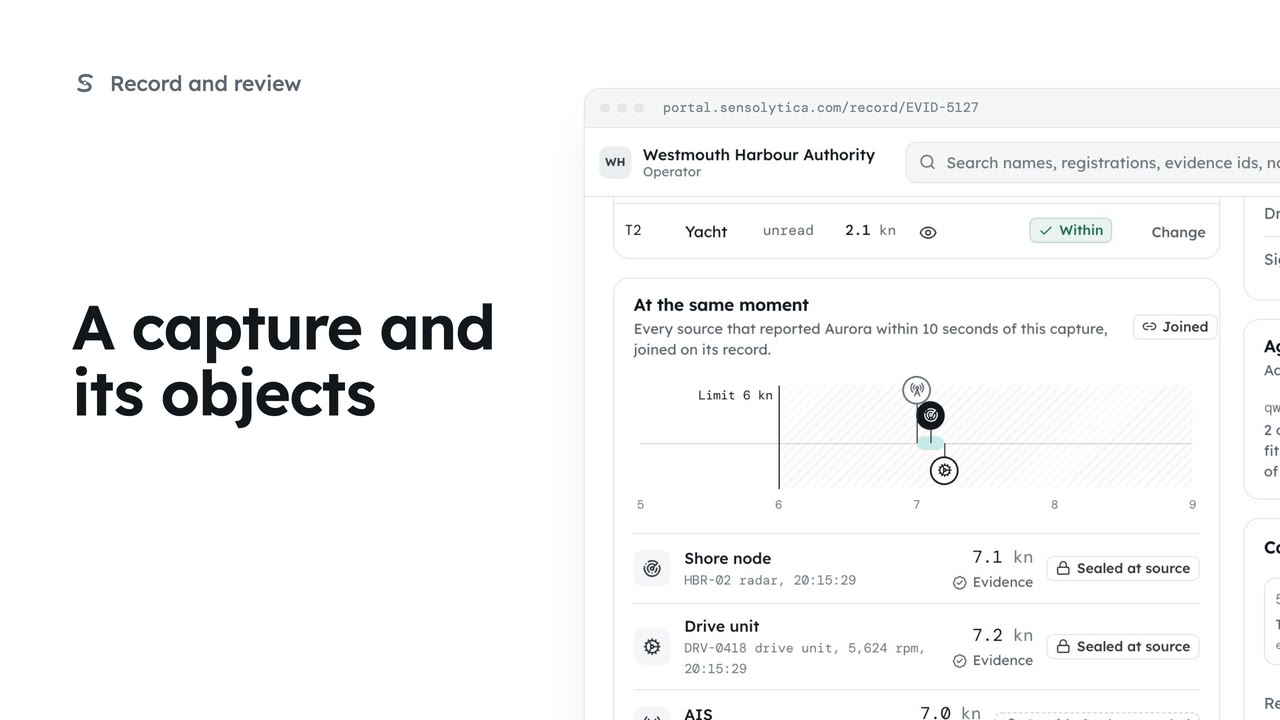
Read one capture: its frames, every object in frame with its own verdict, the other sources at that moment and the seal.
3 min6 stepsOperator, Admin
Find any capture on the record by verdict, node, date or registration, and share the view as a link.
Every capture, sealed
The record lists every capture, newest first. The tag by the title says the chain is intact.
Breach, review or within
The Verdict control shows a count for each. Choose Breach to see only breaches.
Node, zone and date
Use the Node, Zone and date menus. Here, HBR-02 over the last 7 days.
Search by registration
Type a registration, a name or an evidence id in Search the record.
Saved views, one click
Clear filters starts again. Waiting for review shows everything a person still has to decide.
One row, one capture
Select the evidence id to open the capture. On a keyboard, j and k move and Enter opens.
Open The record from the sidebar. Each row is one capture from a shore node: the time, the node and zone, what was seen, its identity, the speed against the limit and the verdict. The lock at the end of the row means it was sealed the moment it landed.
The Verdict control along the top shows how many captures sit under each verdict. Choose Breach, and the list and the sentence above it change together.
Narrow it further with the menus. Pick the harbour approach node, then the last seven days. The sentence reads back exactly what you are looking at, so there is no doubt about the slice.
To find one vessel, type its registration in the search box. Names and evidence ids work too. The filters stay in the address, so you can copy the link and a colleague sees the same view.
Saved views hold the filters used every week. Clear the filters, then choose Waiting for review to see every capture that still needs a person.
Select an evidence id to open that capture, here the motorboat on the entrance. If you prefer the keyboard, j and k move down and up the list, and Enter opens the row you are on.
Sign in with your work email. Your own organisation's records, nodes and units take the place of the Westmouth ones.
3 minRead one capture: its frames, every object in frame with its own verdict, the other sources at that moment and the seal.
3 min6 stepsOperator, Admin
 2 min
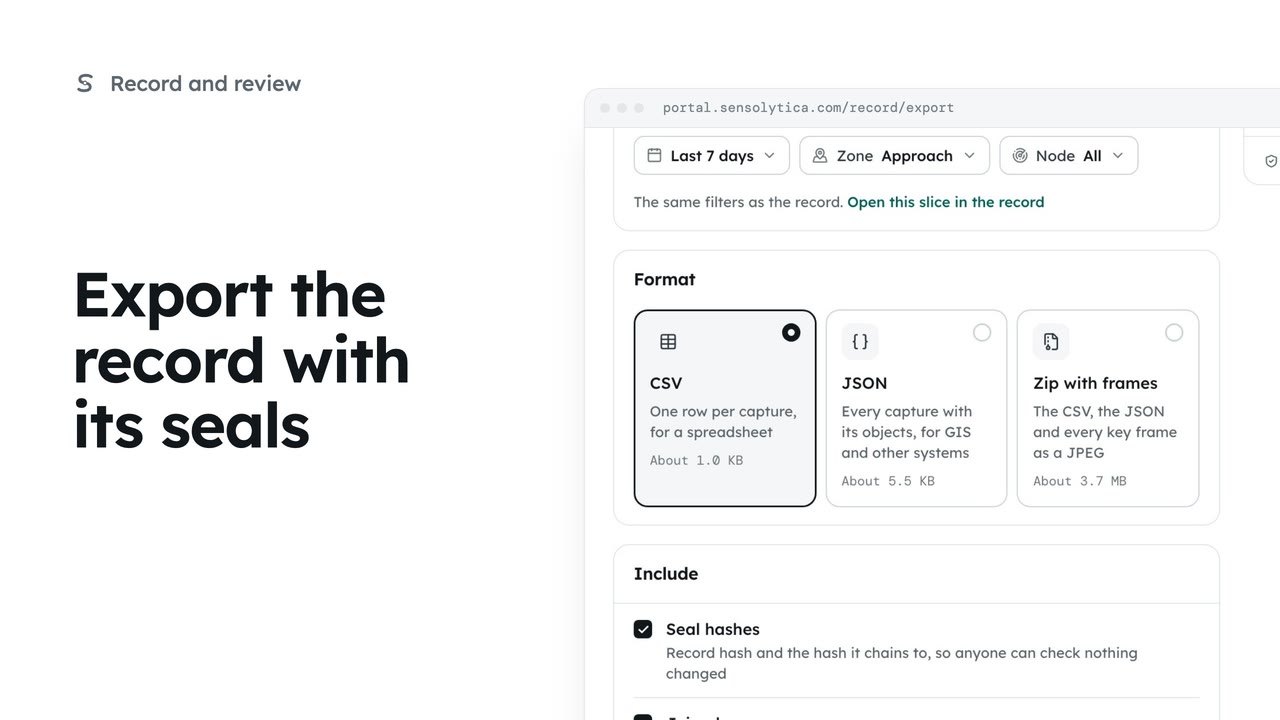
2 minTake a defined slice of the record out as CSV, JSON or a zip with frames, with the seals so whoever receives it can check it.
2 min5 stepsAdmin
 2 min
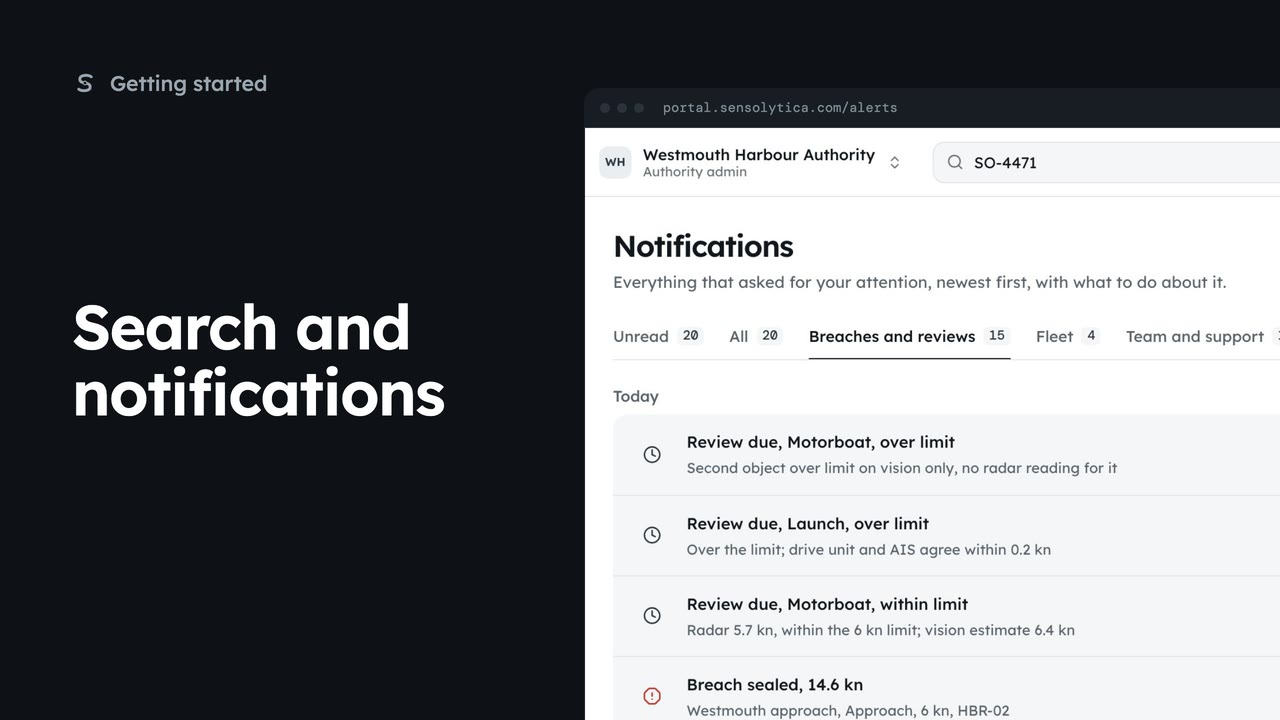
2 minFind a vessel, capture or node from the top bar, and keep up with what needs your attention.
2 min5 stepsAdmin, Operator, Sensolytica staff
Checked against the portal on 15 October 2026. Westmouth names, vessels, units and figures are illustrative. General guidance on using the portal, not legal, regulatory or financial advice.